Sending you to the right roost
Detecting your device…
Native OwlGate app — coming soon
The signed OwlGate app is still in final testing. Leave your email and we’ll ping you the moment it hits the store. In the meantime, you can get protected with a WireGuard config below.
Get protected now
One config file for every location
You don't download a config per country. OwlGate ships a single WireGuard file with all 77 tree houses inside it, each as its own named tunnel — import it once and switch locations inside the WireGuard app.
- Step 1
Download the file
Tap the button above. You get one file — owlgate-all-locations.conf — containing all 77 tree houses as separate named tunnels. There is no per-country download.
- Step 2
Open the WireGuard app
Install WireGuard from the App Store, Google Play, or wireguard.com for Windows, macOS and Linux, then open it.
- Step 3
Import from file or archive
Android/iOS: tap the + button, then "Import from file or archive". Windows/macOS: Import tunnel(s) from file. Linux: sudo wg-quick up ./owlgate-all-locations.conf.
- Step 4
Pick a tunnel and connect
Every location shows up in your tunnel list as "owlgate-<city>". Toggle one on to connect, toggle it off to switch to another.
Keys in the file are placeholders until they're issued to your OwlGate account — sign in and re-download after activating a plan. Prefer just one city? Grab a single tunnel from the Locations page.
Import it — screenshots and exact button names
Same file on every platform. Pick your system and follow the labels exactly as they appear in the WireGuard app.
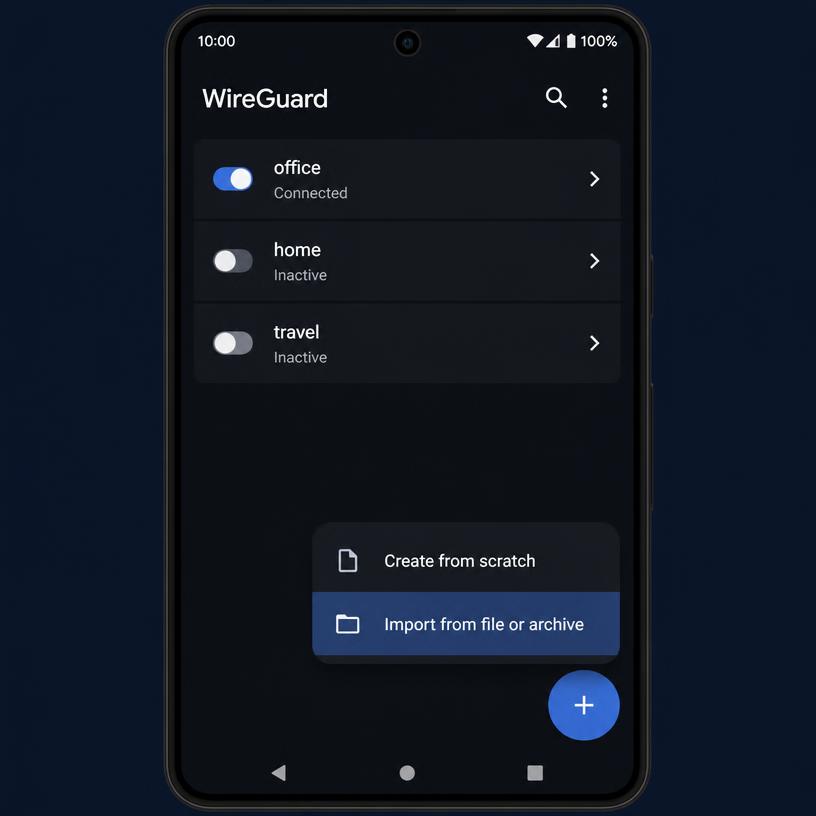
- 1
+
Blue round button, bottom-right of the tunnel list.
- 2
Import from file or archive
Second item in the menu that slides up.
- 3
owlgate-all-locations.conf
Pick it from Downloads in the file picker, then tap it.
- 4
OK
Android asks for a VPN connection request the first time — accept it.
- 5
Toggle
Flip the switch next to "owlgate-london" (or any city) to connect.
If the picker greys the file out, rename it so it still ends in ".conf" — Android only accepts .conf and .zip.
Or pick manually
Scan a QR code with your phone to open that page on the device.